Friday, July 20, 2012

Joel Oleson and Michael Noel were in Calgary

No a technical post…
If you have been following SharePoint Joel Blog, probably know about this.

The two SharePoint MVPs Superstars were in town! Joel and his family is visiting southern Alberta, it is the first time they come to Calgary. Michael Noel flew in to join for him for the Banff National Park tour; this is Michael second visit to Calgary after 27 years. These two travel bees have been to hundreds to countries and countless cities… We are very lucky that they actually put Calgary into their travel map :)

Both Michael and Joel dropped by and gave Calgary SharePoint Usergroup(Calspug) a great presentation. First 30 minutes, Michael was presenting SQL 2012 new feature – AlwaysOn, and how this feature has been further enhanced to support SharePoint and provide the highest server Service Level Agreement (SLA), this feature is also simple to set up and running in SQL 2012, I could see the great benefit of this feature for couple of my projects.

Then SharePoint Joel was presenting Social Intranets – The SharePoint and Yammer Evolution, he shown us the project he has been working on and how Yammer plug-in to SharePoint and plays an important role for collaboration, sharing content and search… With the recent news of Microsoft acquired Yammers, Joel offers some high level insight view of how Yammer will soon play a major in Microsoft stack.

Overall, a great session for the Calgary SharePoint User Group. Not too lengthy and straight to the point.

Another highlight was the “SharePints”! The opportunity to hang out with the superstars for the evening, and heard them sharing their personal and professional life. Down to earth, friendly, approachable and absolutely great people!
Bil Simser and Michael Noel

Jay O'Hara and Joel Oleson

Group picture
Nice to meet you guys! Enjoy your trip in Banff and Calgary!

Tuesday, July 10, 2012

Opening .Msg and .Pdf files in Browser


Challenge
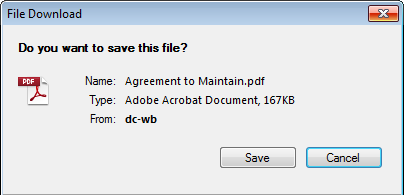
We have a problem in our environment that .MSG file and .PDF documents will be prompt to download before you can open them…  Here are the screen shots that made the users mad! 


Option 1
The common solution is changing the Browser file handling from "strict" to "permissive"…
  • Go to Central Administration > Manage Web Applications > Your WebApp > General Settings
  • Change Browser file handling from "strict" to "permissive"

Unfortunately, it does not work for me.

Option 2
So I tried second approach, add the correct MIME type to IIS for both .msg files and .PDF files.
  • Start Internet Information Manager
  • Select the server node in the left pane, pick your web application.
  • in Right Panel, Open in the MIME Types settings, click add.
  • Enter .msg for file name extension and application/vnd.ms-outlook
  • Repeat for all front end servers


Then run the following script

##============================================================================##
## Allowed Inline Downloaded MimeType for .Msg (Outlook) and .PDF in IIS
## Version: 1.0
## Last updated: 7 July, 2012
## Description: This script add value in AllowedInlineDownloadedMimeTypes for
## .msg files and PDF files
## Reference: http://ianankers.wordpress.com/author/ianankers/page/2/
##==============================================================================#

## Add .Msg (Outlook file type)
$webApp = Get-SPWebApplication http://yourspweburl
If ($webApp.AllowedInlineDownloadedMimeTypes -notcontains "application/vnd.ms-outlook")
{
  $webApp.AllowedInlineDownloadedMimeTypes.Add("application/vnd.ms-outlook")
  $webApp.Update()
  Write-Host "application/vnd.ms-outlook added to AllowedInlineDownloadedMimeTypes"
}

## Add .Pdf
If ($webApp.AllowedInlineDownloadedMimeTypes -notcontains "application/pdf")
{
  $webApp.AllowedInlineDownloadedMimeTypes.Add("application/pdf")
  $webApp.Update()
  Write-Host "application/pdf added to AllowedInlineDownloadedMimeTypes"
}

Well I have tried it and it does not work for me again…

Option 3 (Finally – This work!)
Third tried - Further investigation, it turned out that the web site was created using the previously saved template; the template was created when the web application had 'Browser File Handling' set to 'Strict'. So changing the 'Browser File Handling' in Web Application will have no effect on these sub sites.

The situation has pointed out exactly as Craig Lussier mentioned in his response in the Forums

So here is powershell script that should rescue you from the situation.
##============================================================================##
## PowerShell to Set the 'Browser File Handling' setting to 'Permissive'
## Version: 1.0
## Last updated: 7 July, 2012
## Description: This script will set BrowserFileHandling to "Permissive" for
## specific a document library
## Reference: http://ianankers.wordpress.com/author/ianankers/page/2/
##==============================================================================#

#Get Web
$web = Get-SPWeb "http://yourspweburl"

#Get Document Library
$docLib = $web.lists["Document Library"]

#View all properties/methods of the Document Library and you'll see that BrowserFileHandling is a property
$docLib | Get-Member

#See the current BrowserFileHandling setting for the Document Library
$docLib.BrowserFileHandling

#If you need to change it from Strict to Permissive
$docLib.BrowserFileHandling = "Permissive"
$docLib.Update()

After the executed the script, I clicked on the .Msg file, Voilà! The "Open" button shows up, 

and when I clicked on the PDF, the browser simply open the PDF without a prompt.


Update: 12 Nov 2012, 
Just stumbled to NICO's blog, where he created a nice script and log the changes as well.
http://gallery.technet.microsoft.com/office/Change-Browser-File-e60b46c9

Here is the script

param  

[string] $URL, 
[boolean] $writeToFile = $true 

#Change Browser File Handling for all lists and libraries in SharePoint 2010 farm 
Add-PSSnapin Microsoft.SharePoint.PowerShell -ErrorAction SilentlyContinue 

#Counter variables 
$webcount = 0 
$listcount = 0 

if($writeToFile -eq $true) 

$outputPath = Read-Host "Outputpath (e.g. C:\directory\filename.txt)" 


if(!$URL) 

#Grab all webs 
$webs = (Get-SPSite -limit all | Get-SPWeb -Limit all -ErrorAction SilentlyContinue) 

else 

$webs = Get-SPWeb $URL 

     
if($webs.count -ge 1 -OR $webs.count -eq $null) 

    foreach($web in $webs) 
    { 
    #Grab all lists in the current web that have the "Strict" Browser file handling 
    $lists = $web.Lists | ?{$_.BrowserFileHandling -eq "Strict"} 
    #If there are lists that have the strict browserfilehandling 
        if(-not(!$lists)) 
        { 
        Write-Host "Website"$web.url -ForegroundColor Green   
        if($writeToFile -eq $true){Add-Content -Path $outputPath -Value "Website $($web.url)"} 
            foreach($list in $lists) 
            {  
            #Change the browser file handling to permissive 
            $list.BrowserFileHandling = "Permissive"  
            $list.Update() 
            $listcount +=1 
            Write-Host " - "$list.Title updated           
            if($WriteToFile -eq $true){Add-Content -Path $outputPath -Value " - $($list.Title) updated"} 
            } 
    $webcount +=1 
    $web.Dispose() 
        } 
    } 
#Show total counter for checked webs & lists 
Write-Host "Amount of webs that were updated:"$webcount 
Write-Host "Amount of lists updated:"$listcount 
if($WriteToFile -eq $true){Add-Content -Path $outputPath -Value "Amount of webs updated:$($webcount)"; Add-Content -Path $outputPath -Value "Amount of lists updated: $($listcount)"} 

else 

Write-Host "No webs retrieved, please check your permissions" -ForegroundColor Red -BackgroundColor Black 
}

Well hope this help! Thanks!

Thursday, July 5, 2012

Disabled Content Organizer - SharePoint 2010

If Content Organizer is enabled in your site, you will see a "Drop Off Library" document library either in your left Nav or when you are in All Site Content.


Disabled the feature in Site Settings does not remove the library. and you can't simply delete "Drop Off Library" because the "Delete this document library" link is not available when you are in the "Library Settings"... so how to delete this library?

Here is the PowerShell script that should save your day.

Powershell Script:

##=======================================================================================##
## PowerShell Disabled Content Organizer and delete "Drop Of Library" 
## Version: 1.0
## Last updated: 30 June, 2012
## Description: This script will loop through all the subsites in site collection 
##  and disable the Content Organizer Feature then remove the "Drop off Library"
## Reference: http://social.msdn.microsoft.com/Forums/en/sharepoint2010general/thread/ff72703e-9ba0-4dc2-8221-ccda3529183d
##=======================================================================================##

if((Get-PSSnapin | Where {$_.Name -eq "Microsoft.SharePoint.PowerShell"}) -eq $null) {
 Add-PSSnapin Microsoft.SharePoint.PowerShell;
}

Get-SPSite -Identity http://yoursitecollectionurl | Get-SPWeb -Limit ALL | ForEach-Object { 
  Disable-SPFeature –Identity DocumentRouting –url $_.Url –Confirm:$false
  $dropOffLibrary = $_.Lists["Drop Off Library"]
  $dropOffLibrary.AllowDeletion = "True"
  $dropOffLibrary.Update()
  $dropOffLibrary.Delete()
}

Hope this help!
Thanks

Wednesday, June 6, 2012

SharePoint new folder end with additional underscore

SharePoint has a logic to prevent user from using some of the reserved words as folder names (e.g._file, _files, .files).  So when you create a new folder with “_files” in the folder name in any document library, SharePoint will insert a “_” at the end.

For example, if your folder name is “Releases_files”, if you create this folder in any document library via browser or code, the result will be “Releases_files_”.

The work around is make sure there is no “_files” in your folder name, such as “files” or “-files” will work just fine. Apparently this “feature” has been around since MOSS 2007 or could be earlier, I did not know about it until this week, when one of our document migration code failed…

Found my answer through this link, http://objectmix.com/sharepoint/357916-appending-_-foldername-ending-_files.html

Thanks!

Monday, April 23, 2012

Could not find stored procedure ‘dbo.Search_GetRecentStats’, Event ID 5586 and 6398

In one of my new farm, I noticed two errors repeated themselves in the Event log every minute... One Critical (Event ID 6398), another Error (Event ID 5586), both complaint the same thing:
 "Could not find stored procedure ‘dbo.Search_GetRecentStats’"

Then I found my solution from Andrew Toh SharePoint Adventures Site - Event 6398 and 5586 SharePoint Foundation

Health Data Collection is not enabled. Do the following to enable this service.

  • Central Admin > Monitoring > Configure Usage and Health Data Collection.
  • On the page, make sure the "Enable Usage Data Collection" and " Enable Health Data Collection" are checked. 


If they are checked, make sure you reset them (uncheck them, click OK, come back the recheck them). Then your problem should be solved... 

Some time, I wonder if I could ever solve this issue without other help... because both errors do not mentioned or indicated anything about Health Data Collection... 
So Thanks Andrew! 

Friday, April 20, 2012

Start SharePoint Central Admin Service in Powershell

The other day, instead of reset (Stop and then Start again) the Business Data Connectivity Service in Services on Server page, I accidentally stop the Central Administration Service (well we are all human...) So I turned to PowerShell again...


List all SharePoint Services on the Server

Get-SPServiceInstance


To Start and Stop a SharePoont service you need

Start-SPServiceInstance [GUID] -Confirm


Stop-SPServiceInstance [GUID] -Confirm


Or You can pipe the Service Name to filter the Type Name and confirm your action.

Get-SPServiceInstance | Where-Object {$_.TypeName –eq ‘Central Administration’} |  Start-SPServiceInstance -Confirm


This should save a day :)

Thursday, April 12, 2012

Remove SharePoint Service Application Pool


Problem:
I have been monkeying with the Search Service Application for the last couple days. From create new, to delete, and then re-create new one again in a different name... Then I noticed, when I delete the Service Application, it does not delete the Service Application Pool that previously created or associated with it.

So the previous entries are still in the Service App Pool, and the Service App Pool list is getting longer. when I check the IIS, all I see lots of GUID entries in the Service App Pool... I am nervous of removing GUID in the Service App Pool from IIS without knowing the App Pool Name of the GUID.

Resolution:
Then I turned my search to PowerShell and found a proper solution to remove the Service Application Pool...

First list all the Service Applications with the following cmdlet 
Get-SPServiceApplicationPool | Select Id, Name

* You will need the Service App Pool Name when you are moving the Service App Pool in PowerShell, and the ID, when you remove the Service App Pool from IIS Manager.

Second, remove the Service Application in PowerShell
Remove-SPServiceApplicationPool

Example:


Finally, find the ID in IIS Manager Application Pool, and remove the guid entry from there, if there application associate with the app pool, IIS will stop you from removing the entry.

That's it... 
Note : This is not a problem in SharePoint, because the App Pool can be shared by other applications as well, so removal process will require additional care and love...


SharePoint 2010 Search Comparison

There were time I was asked to present the different version of Search in SharePoint, there tons comparison information in the web, but some of them breakdown too much for non technical / business user to consume, so I decided to simplify a version that is easy to read, also provide a link for more details only if user is interested.

A simplify comparison table of SharePoint Foundation Vs Standard Vs FAST


Features
SharePoint Foundation 2010
SharePoint Server 2010
FAST Search 2010 for SharePoint
Basic site search
Y
Y
Y
Visual Best Bets
Limited
Y
Search Scopes
Y
Y
Search Enhancement Based on User Context
Y
Crawl and Index Custom Properties
Y
Y
Property Extraction and Managed Properties
Limited
Y
Query Federation
Y
Y
Query Suggestions
Y
Y
Similar Results
Y
Sort Results on Managed Properties or Rank Profiles
Y
Relevancy Tuning by Document or Site Promotions
Limited
Y
Shallow Results Refinement
Y
Y
Deep Results Refinement
Y
Document Preview (Word, Excel, Powerpoint)
Y
Windows 7 Federation
Y
Y
People Search
Y
Y
Social Search
Y
Y
Taxonomy Integration
Y
Y
Multi-Tenant Hosting
Y
Rich Web Indexing Support
Y


From a more reliable source I found in TechNet - By Vedant Kulshreshtha
http://blogs.technet.com/b/vedant/archive/2009/10/23/search-technologies-for-sharepoint-2010-products.aspx

Thanks!

Tuesday, April 10, 2012

Configure Search in your Non Domain Standalone DEV Machine


If your SharePoint DEV environment is a non domain on a single machine (or a VM) like the one described in  my post about SharePoint 2010 standard/enterprise with SQL 2008 R2 on a single machine (standalone);

Your SharePoint Search in this DEV is likely not working, then I found a great post from Søren Nielsen, he created a very neat script that setup the Enterprise Search in your DEV environment "automagically"!

Follow the "Search Fix" section, you will find the handy script, and it work like a charm!

How to install a SharePoint 2010 Complete (Dev) Server without AD - By Søren Nielsen

Also check out
How to install and configure a standalone Sharepoint 2010 Server By Srikanth Nair

Many thanks to both Søren Nielsen and Srikanth Nair for Sharing the knowledge!

Deployment for SharePoint Server 2010

Found a series of SharePoint 2010 deployment option with instruction from Technet, those are common topic from SharePoint Administrators

Deployment and Installation
Search Configuration
Technet Complete Reference
http://technet.microsoft.com/en-US/sharepoint/ee518643