Thursday, April 12, 2012

SharePoint 2010 Search Comparison

There were time I was asked to present the different version of Search in SharePoint, there tons comparison information in the web, but some of them breakdown too much for non technical / business user to consume, so I decided to simplify a version that is easy to read, also provide a link for more details only if user is interested.

A simplify comparison table of SharePoint Foundation Vs Standard Vs FAST


Features
SharePoint Foundation 2010
SharePoint Server 2010
FAST Search 2010 for SharePoint
Basic site search
Y
Y
Y
Visual Best Bets
Limited
Y
Search Scopes
Y
Y
Search Enhancement Based on User Context
Y
Crawl and Index Custom Properties
Y
Y
Property Extraction and Managed Properties
Limited
Y
Query Federation
Y
Y
Query Suggestions
Y
Y
Similar Results
Y
Sort Results on Managed Properties or Rank Profiles
Y
Relevancy Tuning by Document or Site Promotions
Limited
Y
Shallow Results Refinement
Y
Y
Deep Results Refinement
Y
Document Preview (Word, Excel, Powerpoint)
Y
Windows 7 Federation
Y
Y
People Search
Y
Y
Social Search
Y
Y
Taxonomy Integration
Y
Y
Multi-Tenant Hosting
Y
Rich Web Indexing Support
Y


From a more reliable source I found in TechNet - By Vedant Kulshreshtha
http://blogs.technet.com/b/vedant/archive/2009/10/23/search-technologies-for-sharepoint-2010-products.aspx

Thanks!

Tuesday, April 10, 2012

Configure Search in your Non Domain Standalone DEV Machine


If your SharePoint DEV environment is a non domain on a single machine (or a VM) like the one described in  my post about SharePoint 2010 standard/enterprise with SQL 2008 R2 on a single machine (standalone);

Your SharePoint Search in this DEV is likely not working, then I found a great post from Søren Nielsen, he created a very neat script that setup the Enterprise Search in your DEV environment "automagically"!

Follow the "Search Fix" section, you will find the handy script, and it work like a charm!

How to install a SharePoint 2010 Complete (Dev) Server without AD - By Søren Nielsen

Also check out
How to install and configure a standalone Sharepoint 2010 Server By Srikanth Nair

Many thanks to both Søren Nielsen and Srikanth Nair for Sharing the knowledge!

Deployment for SharePoint Server 2010

Found a series of SharePoint 2010 deployment option with instruction from Technet, those are common topic from SharePoint Administrators

Deployment and Installation
Search Configuration
Technet Complete Reference
http://technet.microsoft.com/en-US/sharepoint/ee518643

Monday, January 23, 2012

SharePoint 2010 Post SP1 - DB Restore - The backup file should be restored to a server with version '4.0.145.0'

We applied SP2010 SP1 in both production and development environments between Christmas and New Year break, the SP1 ran very smooth, it took care of everything auto-magically... after that we ran the SharePoint 2010 Products Configuration Wizard in both farm, and things seem perfectly fine, the backup still working fine, I did not pay much attention to it since...

Problem
But last week, I  tried to restore a content database using powershell in one of development environment by executing the following cmdlet :
Restore-SPSite -Identity http://SP2010-DEV -Path E:\Backups\Site-80\SP2010.Bak -Force

Then I got a content database version error.

"Restore-SPSite : Your backup is from a different version of Microsoft SharePoint Foundation and cannot be restored to a server running the current version. The backup file should be restored to a server with version '4.0.145.0' or later.
At line:1 char:15"

I was pretty sure we had the same patch to both DEV and PROD farms, I also went through exercise of comparing each services version installed in both environments, everything seem the same, but restore failed...

I followed number of suggestions that work for other (listed below), but it was no luck for my case...
Here were failed attempts (but works for others - may be you)

First attempted (Failed for me but might work for you)- Upgrade-SPContentDatabase Method

  • Executed the Get-SPContentDatabase, to retrieve the database ID 
  • Then run the Upgrade-SPContentDatabase -Identity (database ID)
  • Later tried the Backup-SPSite and Restore-SPSite cmdlet...
But, during the restore I received the same error message

Second attempted (Failed for me but might work for you) - Use the old STSADM command for backup and restore.
  • STSADM.EXE -o backup -url http://server/site -filename backup.dat
  • STSADM.EXE -o restore -url http://server/site -filename backup.dat -overwrite
But, during the restore I still received the same error message

Third attempted (Failed for me but might work for you) - Restore back to the PROD at different web application
  • Restored the fresh backup from the PROD and restore back to the same server but in a different web application and port, using the Backup-SPSite and Restore-SPSite. 
But during restore I still received the same error message again! Holy moly, my heart sank!... I could not restore the same backup that I just created on the same environment!? it was complaining version different in the same prod farm...

So what is this haunting message "The backup file should be restored to a server with version '4.0.145.0' or later."!!??

After further searching again... I realized the problem is on the PROD farm, it is still out of sync... The SharePoint 2010 Products Configuration Wizard in the Central Admin did not correct the version issue... Using the (get-spserver $env:computername).NeedsUpgrade cmdlet it still returned "True".

Last attempted (Works for me!)
Than I found this technet article Restore pre-SP1 backups to an SP1 farm I need to run the following command on the production (SOURCE farm)

psconfig -cmd upgrade -inplace b2b -wait -force

The command completed successfully,

Then I re-checked the system again(get-spserver $env:computername).NeedsUpgrade cmdlet, this time it returned "False". I tried the same cmdlet in both PROD and DEV... After that, I re-created new backup again and was able to restore the backup in the development environment successfully.

This is rather uncommon situation, or may be I trusted the SharePoint 2010 Products Configuration Wizard in the Central Admin will do the job, But it did not... so I lost a weekend on this issue... but I am glad the psconfig cmdlet finally straight everything up. If you are parceling with same issue, hopefully this article may help you...

Good luck!

Some suggested the following cmdlet will work too, I have not tried it yet,
PSConfig.exe -cmd upgrade -inplace b2b -force -cmd applicationcontent -install -cmd installfeatures

Monday, January 9, 2012

SharePoint 2010 Application Event ID 8031


Just few days ago, I posted Remove Search Service Application in SharePoint 2010 using stsadm, over the weekend; I noticed my Application Event log is filled with SharePoint Foundation Error - Event ID 8031, it shows up every 15 minutes… with a big question mark, I turned to internet search engine; some suggested apply the October Cumulative updates for SharePoint 2010 which we already did last year, other suggest rebuild the SharePoint! OMG!

Since everything in the SharePoint appear to be running fine... There is no compelling reason for a server rebuild. Then I found this article from Von Ingo. it helps me get rid of this event. However, I had to arm-wrestling with the DBA to gain access to the SQL Server.

Basically, here is the summary of what you need to do.
  1. Copy the long ID from  the event log
  2. Search the ID in SharePoint Config DB
  3. Retrieve the Column ID
  4. Then run stsadm -o deleteconfigurationobject command
  5. Done!
Here are the details
  1. Copy the long ID from the event 8031, just like the blue highlight in the image above
  2. Logon to SQL Server and lunch SQL Management Studio 
  3. Navigate to SharePoint_Config database, create a new SQL Query, and enter the following statement
    • SELECT ID, Properties FROM [Objects] WHERE [Name] LIKE '%24ca5db5-9a2f-4a3d-9e52-38ab5a1a7ab0_735388cb-9769-4d37-b212-0b17a5db02f8%'
  4. Note the id was copied from the screen above.
  5. The query result returned with one record found. (screen below) 
    • Feel free to look into the XML contents if you are interested.
  6. Then I copy the column id from the above image (highlighted in purple)
  7. Go back to the Web server and run the following stsadm.
    • STSADM -o deleteconfigurationobject -id C8D9F11F-D129-41D7-9248-D54DE43059D2
  8. The operation completed successfully, 
You should stop receiving the Event ID 8031 every 15 minutes. You pretty much need to repeat this work every time after you remove a SharePoint Search Application from your farm.

Hope this help!

Updated 31st Oct 2012
* As pointed out by my reader, "Accessing the Config DB directly from SQL is not supported by Microsoft". Perhaps you should check with Microsoft Support before you update the Config DB manually.

Friday, January 6, 2012

Remove Search Service Application in SharePoint 2010

I have a problematic Search Service Application(SSA) in the SP 2010 farm after patching the SP1, the SSA is always in starting mode or stopping mode when I click stop...it never complete the task successfully... and I can't delete the SSA in Central Admin neither... So I turned to Powershell and the good old stsadm.

Here are the steps

Run cmdlet to get SSA id (the guid)
Get-SPEnterpriseSearchServiceApplication

Then run 
Stsadm -o deleteconfigurationobject -id  <GUID>

Then you should see the SSA gone away successfully.

To re-setup the search for SharePoint 2010, you can follow the script to Russ Maxwell
http://blogs.msdn.com/b/russmax/archive/2009/10/20/sharepoint-2010-configuring-search-service-application-using-powershell.aspx


Tips:
You can also use PowerShell to setup Sharepoint 2010 Search Crawl Schedules. Just follow
Powershell Script to set up Sharepoint 2010 Search Crawl Schedules - from PointBeyond.
http://blog.pointbeyond.com/2011/04/14/crawling-through-sharepoint-2010/

Hope this help!

Updated 09 Jan 2012:
After the SSA is removed, the you will see Event ID 8031 appears in your Event Log, check out next post SharePoint 2010 Application Event ID 8031 for a fix.

Thursday, December 8, 2011

Monitoring SharePoint Recycle Bin via Powershell and Email

I was doing some SharePoint 2010 work for a small investment / financial organization. One of the request from the president is to add some mechanism to monitor the SharePoint recycle bin.

For investment film, every piece of investment related document is important to the client profile, some documents need to remain in the profile for longer than 10 years. The president is worry if documents were accidentally/intentionally deleted from the SharePoint, it may be too late for administrator to discover missing documents. Currently, they have not implemented any record management solution yet.

So I wrote them a script to send out recycle bin status (weekly). the email receiver will decide if they want to restore any document manually.

Here is the script will do.
1) List recent deletion (from recent x number of day)
2) List deleted documents that will be removed from first-stage recycle bin
3) List deleted documents was removed from user recycle bin.
4) Email will provide link to the Recycle bin

Sample email screenshot


PowerShell Script
##==================================================================##
## PowerShell Send out Recycle Bin Status
## Version: 1.0
## Last updated: 08 Dec, 2011
## Description: This script will perform the following
## 1) List recent deletion (from recent x number of day)
## 2) List deleted documents that will be removed from first-stage recycle bin
## 3) List deleted documents was removed from user recycle bin.
## 4) Send out status email
##==================================================================##

#$snapin = Get-PSSnapIn -name "Microsoft.SharePoint.PowerShell" -registered
#if(!$snapin)
#{
Add-PSSnapIn Microsoft.SharePoint.PowerShell
#}

$today = (Get-Date -Format yyyy-MM-dd)

# Host
$url = "http://SP2010/";

#Variables for Email
$emailFrom = "SP2010@SharePoint4Newbie.com"
$emailTo = "administrator@SharePoint4Newbie.com"
$smtpServer = "MailServer.SharePoint4Newbie.com"
$emailSubject = "SharePoint Recycle Bin Report - ($today)"

# Number of day in Recycle Bin
$RecentDeletionDay = 7

# Warning Item in recycle bin that is older then x day.
$WarningDay = 30;

$siteCollection = New-Object Microsoft.SharePoint.SPSite($url);

# First lets create a temp text file, where we will later save the recycle bin info
$recycleBinTmpFile = "Recyclebin.htm"


#Create a Temp File
New-Item -ItemType file $recycleBinTmpFile -Force

# Function to write the HTML Header to the file
Function writeHtmlHeader
{
param($fileName)
$date = ( get-date ).ToString('yyyy/MM/dd')
Add-Content $fileName "<html>"
Add-Content $fileName "<head>"
Add-Content $fileName "<meta http-equiv='Content-Type' content='text/html; charset=iso-8859-1'>"
Add-Content $fileName '<title>$emailSubject</title>'
Add-Content $fileName '<STYLE TYPE="text/css">'
Add-Content $fileName "<!--"
Add-Content $fileName "td {"
Add-Content $fileName "font-family: Tahoma;"
Add-Content $fileName "font-size: 11px;"
Add-Content $fileName "border-top: 1px solid #F0F0F0;"
Add-Content $fileName "border-right: 1px solid #F0F0F0;"
Add-Content $fileName "border-bottom: 1px solid #F0F0F0;"
Add-Content $fileName "border-left: 1px solid #F0F0F0;"
Add-Content $fileName "padding-top: 0px;"
Add-Content $fileName "padding-right: 0px;"
Add-Content $fileName "padding-bottom: 0px;"
Add-Content $fileName "padding-left: 0px;"
Add-Content $fileName "}"
Add-Content $fileName "body {"
Add-Content $fileName "margin-left: 5px;"
Add-Content $fileName "margin-top: 5px;"
Add-Content $fileName "margin-right: 0px;"
Add-Content $fileName "margin-bottom: 10px;"
Add-Content $fileName ""
Add-Content $fileName "table {"
Add-Content $fileName "border: thin solid #000000;"
Add-Content $fileName "}"
Add-Content $fileName "-->"
Add-Content $fileName "</style>"
Add-Content $fileName "</head>"
Add-Content $fileName "<body>"
Add-Content $fileName "<table width='100%' cellspacing='0' cellpadding='2' >"
Add-Content $fileName "<tr bgcolor='#F0F0F0'>"
Add-Content $fileName "<td colspan='7' height='25' align='center'>"
Add-Content $fileName "<font face='tahoma' color='#003399' size='3'><strong>Site Collection Recycle Bin as of $date</strong></font>"
Add-Content $fileName "</td>"
Add-Content $fileName "</tr>"
Add-Content $fileName "</table>"
}

# Function to write the HTML Header to the file
Function writeTableHeader
{
param($fileName, $groupHeader)
Add-Content $fileName "<table cellspacing='0' cellpadding='2' width='100%'><tr bgcolor=#F0F0F0>"
Add-Content $fileName "<td colspan=6><b>$groupHeader</b></td>"
Add-Content $fileName "</tr>"
Add-Content $fileName "<tr bgcolor=#F0F0F0>"
Add-Content $fileName "<td>Deleted Date</td>"
Add-Content $fileName "<td>Deleted By</td>"
Add-Content $fileName "<td>Type</td>"
Add-Content $fileName "<td>Name</td>"
Add-Content $fileName "<td>Original Path</td>"
Add-Content $fileName "<td>Owner</td>"
Add-Content $fileName "</tr>"
}

# Function to write the Table Footer
Function writeTableFooter
{
param($fileName, $groupFooter)
Add-Content $fileName "<tr>"
Add-Content $fileName "<td colspan=6><b>$groupFooter</b></td>"
Add-Content $fileName "</tr>"
Add-Content $fileName "</table></br>"
}

# Function to write the HTML Footer to the file
Function writeHtmlFooter
{
param($fileName)
Add-Content $fileName "</body>"
Add-Content $fileName "</html>"
}

# Function to write the Recycle Bin Item
Function writeRecycleBinItem
{
param($fileName, $deletedDate, $deletedBy, $itemType, $itemName, $OriginalPath, $itemOwner)
Add-Content $fileName "<tr>"
Add-Content $fileName "<td>$deletedDate</td>"
Add-Content $fileName "<td>$deletedBy</td>"
Add-Content $fileName "<td>$itemType</td>"
Add-Content $fileName "<td>$itemName</td>"
Add-Content $fileName "<td>$OriginalPath</td>"
Add-Content $fileName "<td>$itemOwner</td>"
Add-Content $fileName "</tr>"
}


# Function to send email
Function sendEmail
{
param($from,$to,$subject,$smtphost,$htmlFileName)
$body = Get-Content $htmlFileName
$smtp= New-Object System.Net.Mail.SmtpClient $smtphost
$msg = New-Object System.Net.Mail.MailMessage $from, $to, $subject, $body
$msg.isBodyhtml = $true
$smtp.send($msg)
}

writeHtmlHeader $recycleBinTmpFile

#Querying First Stage recyle bin
$recycleQuery = New-Object Microsoft.SharePoint.SPRecycleBinQuery;
$recycleQuery.OrderBy = [Microsoft.SharePoint.SPRecycleBinOrderBy]::DeletedDate;
$firstStageRecycledItems = $siteCollection.GetRecycleBinItems($recycleQuery);

$count = $firstStageRecycledItems.Count;
write-host "Total item after query: $count";

$LastWeek = [DateTime]::Now.AddDays(-$RecentDeletionDay);
$y = 0;

writeTableHeader $recycleBinTmpFile "<a href='http://SP2010/_layouts/AdminRecycleBin.aspx'>First Stage Recycle Bin </a>since last week ($LastWeek)"

for($x = $count; $x -ge 0; $x--)
{
if ( $firstStageRecycledItems[$x].DeletedDate -ge $LastWeek)
{
writeRecycleBinItem $recycleBinTmpFile $firstStageRecycledItems[$x].DeletedDate.ToString() $firstStageRecycledItems[$x].DeletedByName $firstStageRecycledItems[$x].ItemType $firstStageRecycledItems[$x].Title $firstStageRecycledItems[$x].DirName $firstStageRecycledItems[$x].AuthorName;
$y++
}
}
writeTableFooter $recycleBinTmpFile "Total $y items"


$WarningDate = [DateTime]::Now.AddDays(-$WarningDay);
$j = 0;

writeTableHeader $recycleBinTmpFile "First Stage Recycle Bin - These items has been deleted for longer than $WarningDay days ($WarningDate)";

for($i = 0; $i -lt $count; $i++)
{
if ( $firstStageRecycledItems[$i].DeletedDate -le $WarningDate)
{
writeRecycleBinItem $recycleBinTmpFile $firstStageRecycledItems[$i].DeletedDate.ToString() $firstStageRecycledItems[$i].DeletedByName $firstStageRecycledItems[$i].ItemType $firstStageRecycledItems[$i].Title $firstStageRecycledItems[$i].DirName $firstStageRecycledItems[$i].AuthorName;
$j++
}
}
writeTableFooter $recycleBinTmpFile "Total $j items"

#querying second stage recyle bin
$recycleQuery.ItemState = [Microsoft.SharePoint.SPRecycleBinItemState]::SecondStageRecycleBin;
$secondStageRecycledItems = $siteCollection.GetRecycleBinItems($recycleQuery);

$count = $secondStageRecycledItems.Count;
write-host "Total item after query: $count";

$LastWeek = [DateTime]::Now.AddDays(-$RecentDeletionDay);
$y = 0;


writeTableHeader $recycleBinTmpFile "<font color='Red'><a href='http://SP2010/_layouts/AdminRecycleBin.aspx?View=2'>Deleted from end user Recycle Bin </a> since last week </font>($LastWeek)"

for($x = $count; $x -ge 0; $x--)
{
if ( $secondStageRecycledItems[$x].DeletedDate -ge $LastWeek)
{
writeRecycleBinItem $recycleBinTmpFile $secondStageRecycledItems[$x].DeletedDate.ToString() $secondStageRecycledItems[$x].DeletedByName $secondStageRecycledItems[$x].ItemType $secondStageRecycledItems[$x].Title $secondStageRecycledItems[$x].DirName $secondStageRecycledItems[$x].AuthorName;
$y++
}
}
writeTableFooter $recycleBinTmpFile "Total $y items"

writeHtmlFooter $recycleBinTmpFile

#send out email
sendEmail $emailFrom $emailTo $emailSubject $smtpServer $recycleBinTmpFile

$siteCollection.Dispose();

##==================================================================##


Note: the script will not change anything in your system but send out email.
Please feel free to copy the script and save to the harddrive (example c:\Powershell\RecycleBin_Status.ps1), then create a Windows Tasks Scheduler to execute the script weekly...

Please TEST the script multiple times before using in production...

Hope this help!


Tuesday, August 16, 2011

Colour coding to your SharePoint 2007 calendar

One of my recent project was to support and perform some enhancement on a MOSS 2007 for our provincial government. Due to the nature of the government, every production deployment is a complex process, it requires different level of QA, different approval from IT and infrastructure approval and lengthy change request... In short, if you have created a simple "Hello World" webpart, it will take at least a month to be deployed to production environment.

So my task was to add some colour coding to SharePoint Calendar for different event type... in the past, I have done it by creating a calendar webpart using the Calendar control in ASP.Net, which I have full control of the calendar. Due to limited timeline, I turned to Christophe's blog who have published an article on how to style MOSS 2007 calender without deploy a single WSP... and I love it!

Add color coding to your SharePoint 2007 calendar in 15 minutes
http://blog.pathtosharepoint.com/2010/04/06/tutorial-add-color-coding-to-your-sharepoint-2007-calendar-in-15-minutes/

Also, check out the HTML Calculated Column: solutions for SP 2010
http://blog.pathtosharepoint.com/2010/06/16/html-calculated-column-solutions-for-sp-2010-part-iv

The biggest benefit of this approach is the quick turn around time for the client, not complex deployment process, my client is welling to negotiate due to some styling limitation, but they love the quick turn around and happy with the result.

Thanks Christophe! you are my hero!

Friday, April 8, 2011

Change ADS Password Webpart

I got an interesting request to build a SharePoint webpart that allow user to change their AD password. Mean, the webpart need to authenticate and update user password against LDAP.

Supposed if your environment have Office Outlook Web Access (OWA), the same feature can be found here.
  • In OWA.
  • Click "Options" button on the top right corner
  • The click the "Change Password" in left navigation.
  • The change password screen should look like this.

There are third party vendors out there who sell the similar webpart as well...

Anyway, to fulfill the request, I have built a SP 2010 webpart which will provide the same functionality, and because it is a webpart, you can deploy the feature to your site collection and place it on any page. The visual of the webpart will look like image below.


This sample webpart will
  • Show user login name
  • Password last update
  • Allow user to change existing password
A copy of this project can be download from here (Coming Soon)… 

If you are keen of building one from scratch... please follow the instruction below. Before you start, you need to obtain the LDAP information from your network administrator.

Change ADS Password Webpart

1) Launch Visual Studio 2010
2) On File menu, select New Project
3) Under Visual C#, SharePoint, 2010, Select Visual Web Part
4) Project Name: ChangeADSPassword
5) Click “OK” to create the project files

6) In Solution Explorer
7) Delete “VisualWebPart1” (created by default)
8) Add a New Item
9) Under Visual C#, SharePoint, 2010, select “Visual Web Part”
10) Named ChangePasswordWebPart, click OK
11) You may be prompt to specific your SharePoint URL
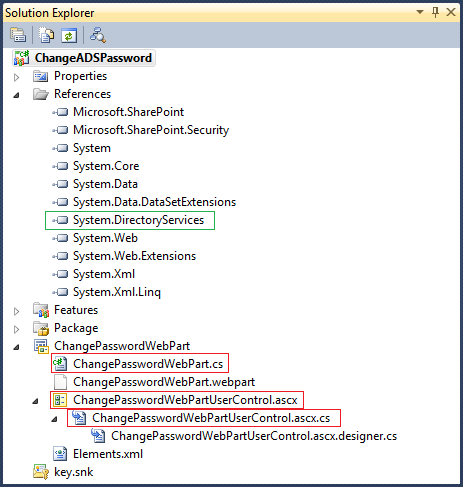
  • Once the project is created, these are the files (in green and red) you need to make changes


12) Right click Reference and Add “System.DirectoryServices”

13) Double click “ChangePasswordWebPartUserControl.ascx
14) Paste the following code at the end of the page

<style type="text/css">
    .requiredField
    {
        color: #ff0000;
    }
    .xxSmallfont
    {
        font-size: xx-small;
    }
</style>
<br />
<table border="0">
    <tr>
        <td>You are logged on as:</td>
        <td><asp:Label ID="lblUser" runat="server" Text="" style="font-weight: 700"></asp:Label></td>
    </tr>
    <tr>
        <td>Password last updated on:</td>
        <td><asp:Label ID="lblPwdLastSet" runat="server" Text="" style="font-weight: 700"></asp:Label></td>
    </tr>
    <tr>
        <td></td>
        <td></td>
    </tr>
    <tr>
        <td>Current Password:<span class="requiredField">*</span></td>
        <td><asp:TextBox ID="oldpassword" runat="server" TextMode="Password"></asp:TextBox></td>
    </tr>
    <tr>
        <td>New Password:<span class="requiredField">*</span></td>
        <td><asp:TextBox ID="newpassword" runat="server" TextMode="Password"></asp:TextBox></td>
    </tr>
    <tr>
        <td>Confirm New Password:<span class="requiredField">*</span></td>
        <td><asp:TextBox ID="checknewpassword" runat="server" TextMode="Password"></asp:TextBox></td>
    </tr>
    <tr>
        <td>
        </td>
        <td>
            <asp:Button ID="btnChangePassword" runat="server" Text="Change Password"
                onclick="btnChangePassword_Click" /></td>
    </tr>
    <tr>
        <td colspan=2><asp:Label ID="lblOutput" runat="server" Text=""></asp:Label>
        </td>
    </tr>
</table>

15) Right Click and select “View Code” or open ChangePasswordWebPartUserControl.ascx.cs
16) Add the following code at the using section

using System.DirectoryServices;
using Microsoft.SharePoint;
using Microsoft.SharePoint.WebControls;

17) Highlight the
        protected void Page_Load(object sender, EventArgs e)
        {
        }

18) Replace with 

        private string ldapPath;

        public string LdapPath
        {
            get { return ldapPath; }
            set { ldapPath = value; }
        }

        protected void Page_Load(object sender, EventArgs e)
        {
            try
            {
                if (!Page.IsPostBack)
                {
                    string strLoginName = GetCurrentUser();
                    lblUser.Text = strLoginName;
                    lblPwdLastSet.Text += SearchUserByProperties(strLoginName, "pwdLastSet");
                }
            }
            catch (Exception ex)
            {
                lblOutput.Text = ex.Message.ToString();
            }
        }

        protected void btnChangePassword_Click(object sender, EventArgs e)
        {
            if ((oldpassword.Text.Length > 0) || (newpassword.Text.Length > 0) || (checknewpassword.Text.Length > 0))
            {
                if (newpassword.Text.ToString() == checknewpassword.Text.ToString())
                {
                    string strLoginName = GetCurrentUser();
                    lblOutput.Text = ChangeAcctPassword(strLoginName, oldpassword.Text, checknewpassword.Text);
                }

                else
                {
                    lblOutput.Text = "Passwords don't match";
                }
            }
            else
            {
                lblOutput.Text = "You must provide all require field";
            }
        }

        /// <summary>
        /// Update Account Password
        /// </summary>
        /// <param name="strLoginName"></param>
        /// <param name="oldPassword"></param>
        /// <param name="newPassword"></param>
        /// <returns></returns>
        private string ChangeAcctPassword(string strLoginName, string oldPassword, string newPassword)
        {
            string strOutput = string.Empty;
            string domainPath = ldapPath;

            try
            {
                DirectoryEntry domain = new DirectoryEntry(domainPath, strLoginName, oldPassword, AuthenticationTypes.Secure);

                DirectorySearcher search = new DirectorySearcher(domain);
                search.Filter = string.Format("(sAMAccountName={0})", strLoginName);
                search.SearchScope = SearchScope.Subtree;
                search.CacheResults = false;

                SearchResultCollection results = search.FindAll();
                if (results != null)
                {
                    try
                    {
                        foreach (SearchResult result in results)
                        {
                            domain = result.GetDirectoryEntry();
                        }

                        domain.Invoke("ChangePassword", new object[] { oldPassword, newPassword });
                        domain.CommitChanges();
                        strOutput += "<BR>Password is changed";
                    }
                    catch (Exception ex)
                    {
                        strOutput += string.Format("<BR>{0}<BR>Password couldn't be changed due to Password Policy restrictions", ex.Message.ToString());
                    }
                }
                else
                {
                    strOutput += "<BR>User not found or bad password";
                }
            }
            catch (Exception er)
            {
                strOutput += er.Message.ToString();
            }
            return strOutput;
        }

        /// <summary>
        /// Search AD User by properties
        /// </summary>
        /// <param name="LoginName"></param>
        /// <param name="strProperty"></param>
        /// <returns></returns>
        public string SearchUserByProperties(string LoginName, string strProperty)
        {
            string strReturn = string.Empty;
            string domainPath = ldapPath;

            using (DirectoryEntry domain = new DirectoryEntry(domainPath))
            {
                try
                {
                    DirectorySearcher search = new DirectorySearcher(domain);
                    search.Filter = string.Format("(&(objectclass=user)(objectcategory=person)(sAMAccountName={0}))", LoginName);
                    search.SearchScope = SearchScope.Subtree;
                    search.PropertiesToLoad.AddRange(new string[] { "cn", "sn", strProperty });

                    SearchResultCollection results = search.FindAll();
                    if (results != null)
                    {
                        foreach (SearchResult result in results)
                        {
                            if (result != null)
                            {
                                TimeSpan pwdLastSet = TimeSpan.MinValue;

                                if (result.Properties.Contains(strProperty))
                                {
                                    pwdLastSet = TimeSpan.FromTicks((long)result.Properties[strProperty][0]);

                                    long fileTime = (long)result.Properties[strProperty][0];
                                    DateTime pwdSet = DateTime.FromFileTime(fileTime);

                                    //strReturn += result.Properties["cn"][0];
                                    strReturn = pwdSet.ToString();
                                }
                            }
                        }
                    }
                }
                catch (Exception ex)
                {
                    strReturn = ex.Message;
                }
            }
            return strReturn;
        }

        /// <summary>
        /// Strip off domain and return current user login name
        /// </summary>
        /// <returns></returns>
        private string GetCurrentUser()
        {
            SPWeb webContext = SPControl.GetContextWeb(Context);
            string strLoginName = webContext.CurrentUser.LoginName;

            int iPosition = strLoginName.IndexOf("\\") + 1;
            strLoginName = strLoginName.Substring(iPosition);
            return strLoginName;
        }

19) Then double click on ChangePasswordWebpart.cs
20) Highlight the

        protected override void CreateChildControls()
        {
            Control control = Page.LoadControl(_ascxPath);
            Controls.Add(control);
        }

21) Replace with

        // Visual Studio might automatically update this path when you change the Visual Web Part project item.
        private const string _ascxPath = @"~/_CONTROLTEMPLATES/ChangeADSPassword/ChangePasswordWebPart/ChangePasswordWebPartUserControl.ascx";

        //default LDAP (check with administrator for actual dns)
        private string strDefaultLDAPPath = "LDAP://DC01.SP2010.com";

        private string ldapDomain;
        [Category("Custom Properties"),
        Personalizable(PersonalizationScope.Shared),
        WebBrowsable, WebDisplayName("Domain Path:(LDAP://domain.com)"),
        WebDescription("LDAP Domain Path")]
        public string LdapDomain
        {
            get { return ldapDomain; }
            set { ldapDomain = value; }
        }

        protected override void CreateChildControls()
        {
            Control control = Page.LoadControl(_ascxPath);
            ChangePasswordWebPartUserControl ctl = control as ChangePasswordWebPartUserControl;
            ctl.LdapPath = ((ldapDomain != null && ldapDomain.Length > 0)) ? ldapDomain : strDefaultLDAPPath;
            Controls.Add(ctl);
            this.Title = "Change Password";
        }


22) Save All files then click “Build” to check for error


23) If successful, then click “deploy” to test your webpart
24) If you follow the instruction correctly, you should find ChangeADSPassword.wsp locate at the BIN folder (debug/release) of your project file location, which you can deploy manually.

25) Go to your development site
26) Add a webpart, under custom (should look like this).

27) After added onto the page, the visual should look like this.

28) Edit the webpart, under the Custom Properties section, is where you specify the LDAP information.

29) Stop Editing and start testing.

Done!

As said, OWA has the same built in password page... but if OWA is not available in your project for whatever reason, I hope you find this webpart useful! Good luck!

Also checkout
Codeplex for Change Password web part:
http://changepassword.codeplex.com/
Or, if you want the complete SharePoint AD TOOL
http://adselfservice.codeplex.com/

Disclaimer:
The information and code sample provide as it. I hope it will help you get going… The webpart should work in typical ADS and SP2010 environment; if not, please get further support from MSDN library, search engine or check out 3rd party webparts.
 
Thanks!